ViralCut Pro
An OpusClip alternative. Make the edit yours.
Find moments with AI. Combine several clips from one recording into one captioned short. Shape the story in ViralCut Pro.
Footage: NASA’s Curious Universe. No affiliation or endorsement.
ViralCut Pro vs OpusClip
Your content. Your call on the final cut.
Put your podcast or interview to work with ViralCut Pro: create an AI-prepared short, reopen the project and shape your next clip. Start manually when you already know the moment. OpusClip also offers editing and reframing; compare the workflow and output, not just the feature names.
Written by the ViralCut Pro team. Competitor documentation checked on . This is a feature comparison, not a controlled performance benchmark. OpusClip is a separate product; no affiliation or endorsement is implied.
On narrow screens, scroll the comparison horizontally to see both tools.
| What matters | ViralCut Pro | OpusClip |
|---|---|---|
| Combining clips into one video | Select, trim and arrange several moments from one source recording, then export one combined short or separate clips. This is not an arbitrary multi-file merger. | Its Video Joiner page describes adding videos through the Editor’s Media tab and combining them on a timeline. Joining is not exclusive to ViralCut; this documentation was checked on 11 September 2026, not tested hands-on. Source |
| Finding a clip | Choose Create with AI for a prepared short, or Edit manually to select your own moment. AI suggestions are available on demand. | AI clipping with Virality Score and an editor to refine the selected clips. Source |
| Vertical framing | Person and head tracking follows the visible subject. Fill, Fit and Blur offer different framing choices. It does not identify the active speaker from audio. | Documents automatic speaker tracking using voice and motion cues, plus manual subject tracking. Source |
| Captions | Style, size, color and position controls. Transcription and burned-in captions are produced during export. | Animated captions and editing tools; availability varies by plan. Source |
| Another short from the same episode | Return to the saved project for another moment or version. Reusing saved analysis does not consume more analysis minutes; render fair-use limits apply. | Saved projects and clip editing are documented. Check the selected plan for credits, storage and export limits. Source |
| Publishing workflow | Completed renders appear in My Shorts for preview and download. Use the downloaded video in your usual publishing workflow. | Documents social publishing, with scheduling and professional-editor exports on eligible plans. Source |
Make ViralCut your next editing workspace
Turn one conversation into a repeatable editing workflow: an AI-prepared first short, more moments from the saved source, and control over framing and caption style. Already have a clip in mind? Start manually without running AI analysis.
Consider OpusClip if…
Your decision depends on its documented active-speaker tracking, social scheduler or exports to Premiere Pro and DaVinci Resolve. Check which plan includes the features you need, and test your own material.
From source to short
See the short. Then make yours.
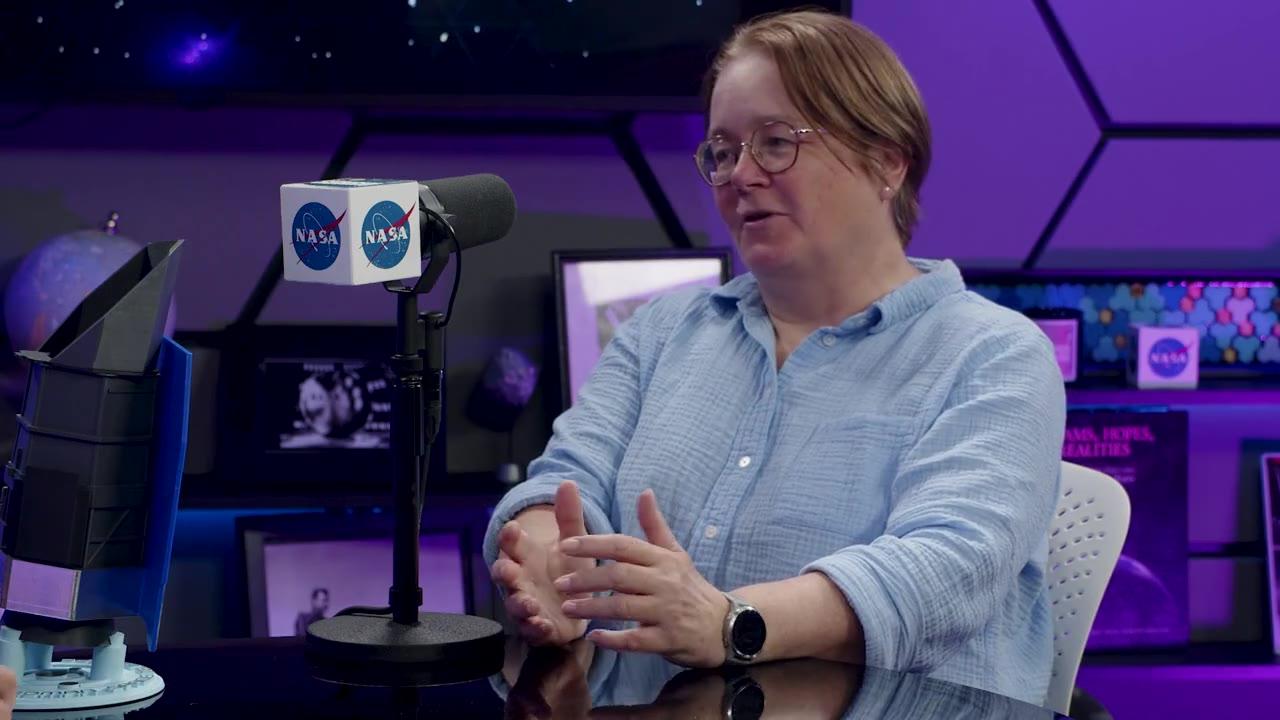
The example below compares the same 14 seconds before and after ViralCut framing and caption rendering. The excerpt was selected for this demonstration. It demonstrates the output, not a claim that our AI selected a better clip than another tool.
The footage is the proof
The conversation, as recorded.
Person tracked. Captions added.
Same 14 seconds. Actual ViralCut framing and caption render.
Watch the short full size ↗Demo footage: NASA’s Curious Universe. No affiliation or endorsement.
Transcript & footage credit
“The universe was behaving much more strangely than we imagined. And that instead of coasting out at the constant speed forever or slowing down, it in fact is accelerating. Huge, unexpected mystery.”
Source: NASA’s Curious Universe / NASA’s Goddard Space Flight Center. Excerpt selected for this demonstration; editing by ViralCut. No NASA affiliation or endorsement.
Try it with your own conversation
- Add your own video file or an accessible YouTube link in Studio.
- Choose AI to prepare a short, or manual editing to choose the passage, framing and caption style.
- Review the completed video in My Shorts. Return to the saved project for another moment or a new version.
For a detailed editing checklist, read how to turn podcasts into shorts. You can also explore the workflows for podcasters and YouTube creators.
Need a setup, explanation and payoff from different parts of one recording? See how to combine multiple clips into one short.
Compare the allowance, too
More edits. No repeat charge for saved analysis.
ViralCut bills analysis time from your source video. Rendering and making versions from saved analysis do not spend additional analysis minutes. That does not mean unlimited rendering: fair-use limits still apply.
- Creator: $19 USD per month, with 240 source-analysis minutes per billing period.
- Pro: $39 USD per month, with 600 source-analysis minutes per billing period.
OpusClip uses credits and offers several plans. Check its current pricing and plan limits alongside ViralCut pricing and fair use. Monthly and annual offers, storage, credits and rendering limits are different dimensions; a headline price alone is not a like-for-like comparison.
Questions before switching.
Is ViralCut Pro an alternative to OpusClip?
Yes. ViralCut Pro is a browser-based alternative for turning podcast and interview videos into captioned vertical shorts. Choose automatic creation or manual editing. Compare the actual framing, caption controls and plan allowances against your own workflow before choosing.
Is ViralCut Pro a free OpusClip alternative?
ViralCut Pro offers paid Creator and Pro plans. This page does not promise a free plan. OpusClip lists a free plan with its own limitations; consult both pricing pages for current terms.
Does ViralCut track the person who is speaking?
ViralCut tracks people and head position visually, including through movement and camera cuts. It does not determine who is speaking from the audio. For a wide group conversation, review the rendered crop or use Fit to keep the whole picture.
Can I move an OpusClip project into ViralCut?
Start from your original video file or an accessible YouTube video you have permission to use. This workflow does not import an OpusClip editing project, its settings or its credit balance.
Will switching tools make my clips go viral?
No tool can guarantee views. Compare whether a clip makes sense on its own, keeps the subject visible and has readable captions. Measure audience retention and qualified visits after publishing.
Your next edit
You already recorded it.
Now make it a short.
Give your next upload a head start with the footage you already have.